Work and Project Reports
Work Time Reports
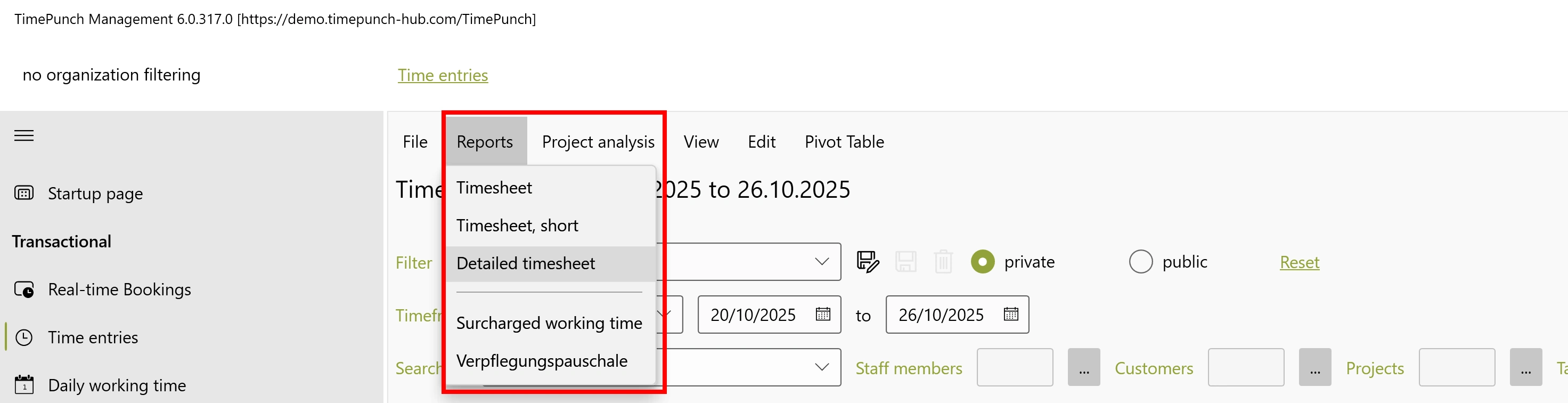
General work time reports can be found in the “Individual Entries” section of the “Reports” menu. To open a report, simply set the desired filter and then select the relevant report.
The overview in the individual entries may not display all records. This is due to the maximum number of search results specified in the settings. However, a report always contains all relevant data – regardless of this setting.
Monthly reports
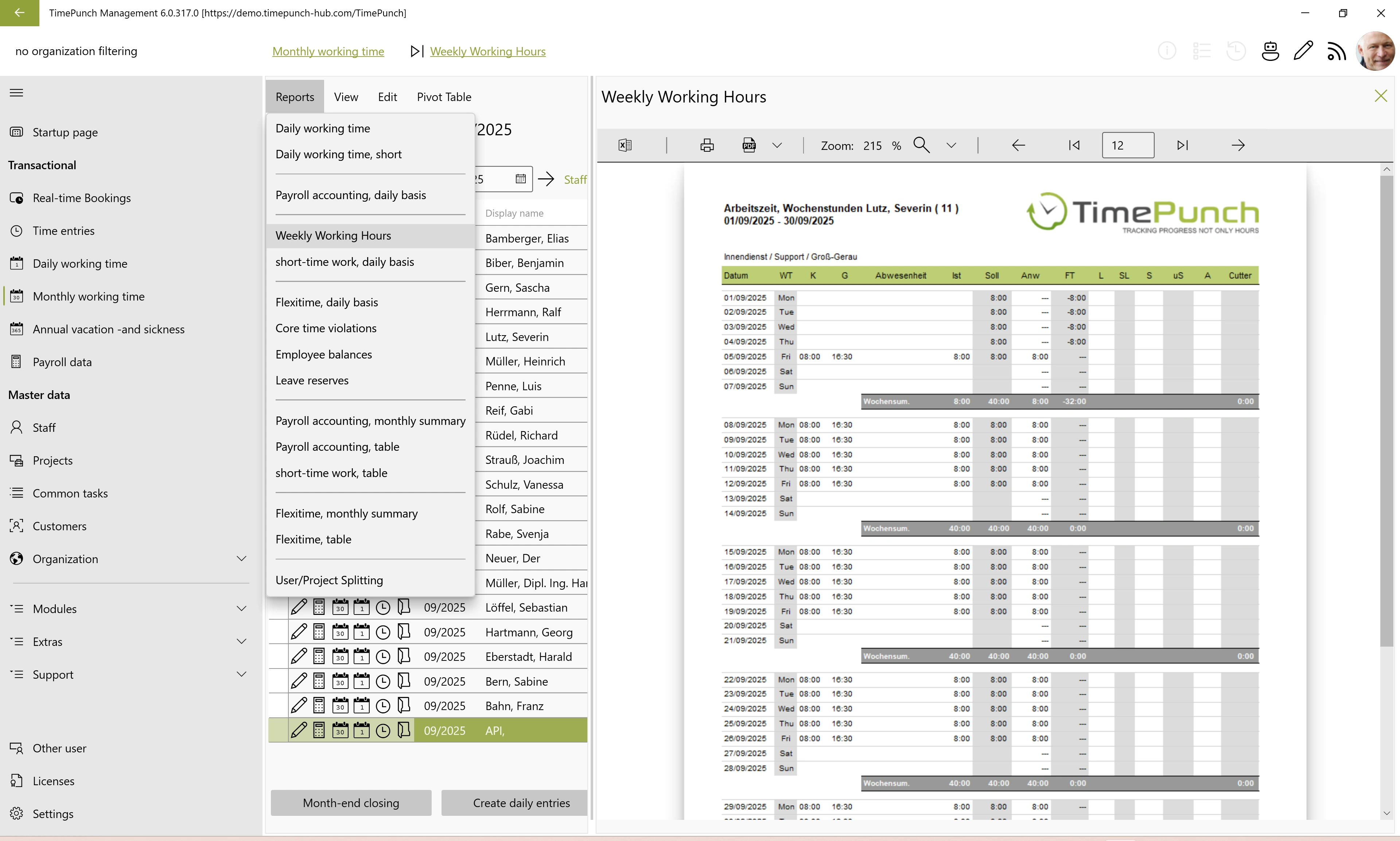
Reports for analysing daily and monthly working hours can be found in the ‘Daily working hours’ and ‘Monthly working hours’ sections.
An example of this is the ‘Working hours, weekly hours’ report, which clearly displays daily, weekly and monthly working hours.
Project reports
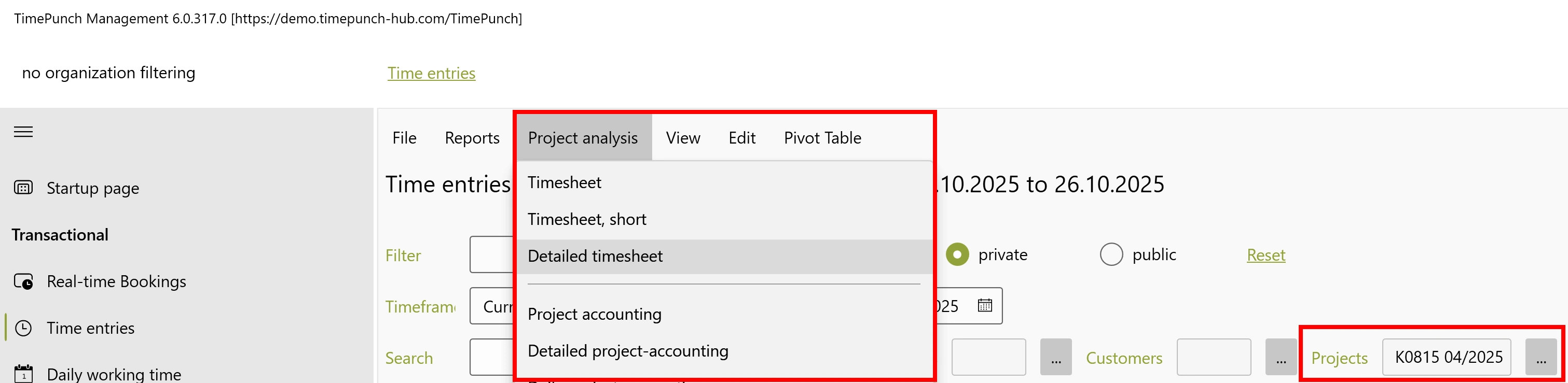
To access project reports, you must first select a project. As long as no project is actively selected, the reports under the “Project Analysis” menu are greyed out and cannot be opened.
Only staff with Project Manager or Project Assistant permissions are authorised to open project reports.
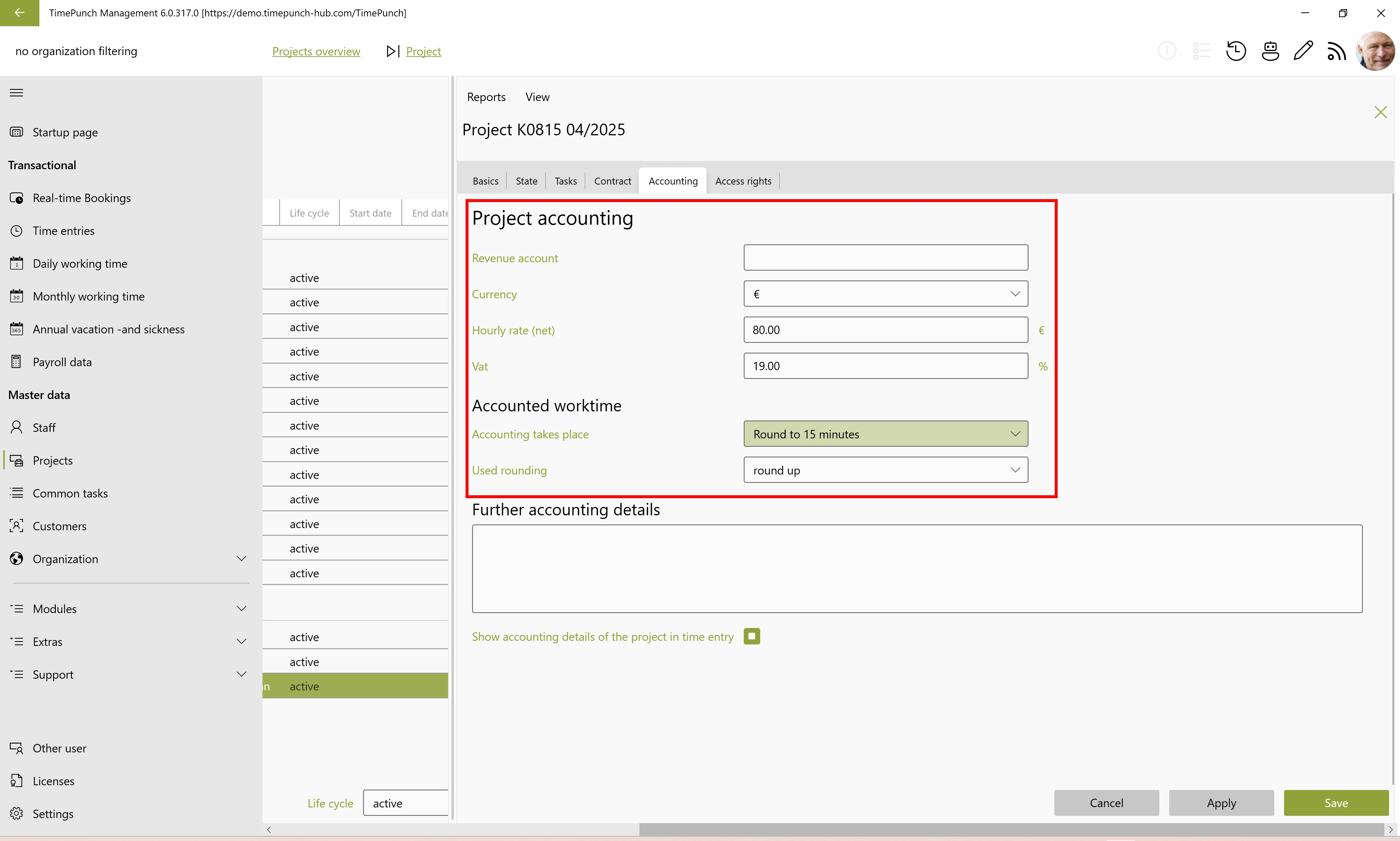
The times displayed within the project reports are not the actual working hours, but rather the invoiced hours. Only project hours relevant for invoicing, which are charged to the client, are invoiced.
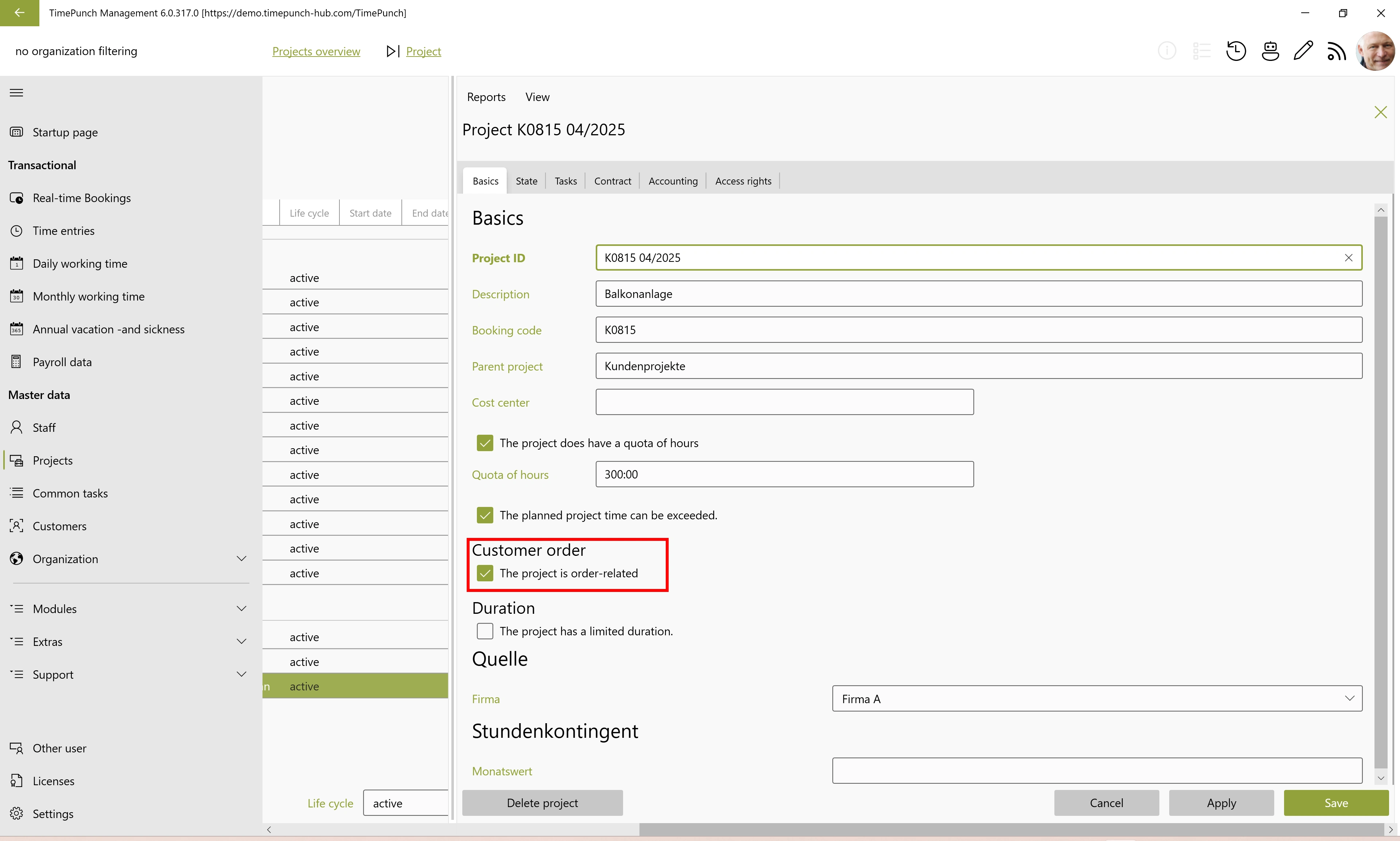
For a project to generate invoiced times, it must be marked as a customer order. The option “The project is order-related” is available in the project dialogue for this purpose.
When invoicing, the project’s rounding settings and billing-relevant data – e.g. hourly rates or flat rates – are also taken into account.